Every time you open a website, a surprisingly complex process begins in the background. You type a web address, press Enter and within seconds the page appears on your screen. While it feels instant, many systems are working together to make that happen. Your browser, internet connection, DNS servers, hosting server and webpage files all play a role in loading the final page.
Most users only see the result, a fully loaded website but understanding how a webpage loads can help you learn web development, improve website speed, troubleshoot errors and better understand how the internet works.
In reality, dozens of technical actions happen behind the scenes. To make it simple, this guide breaks everything into 8 core steps. From the moment you enter a URL to the moment the page becomes visible, we’ll explain the complete journey in beginner-friendly language.
Also Read: How to Become a Senior Frontend Developer: 15 Mental Models
Whether you are a student, website owner, blogger or aspiring developer, this guide will help you understand exactly what happens between typing a website address and seeing the webpage load.
Table of Contents
What Does “Loading a Webpage” Actually Mean?
When people say a website is “loading” they usually mean the browser is fetching and displaying the content of a webpage. But technically, loading a webpage means much more than just showing text on a screen.
A webpage is made of multiple files and resources, such as:
- HTML for structure
- CSS for design and styling
- JavaScript for interactivity
- Images and icons
- Fonts
- Videos or media files
- Data from databases or APIs
When you visit a website, your browser needs to request these files from a server connected to the internet. Once the files are received, the browser reads them, organizes them and builds the final visual page you see.
So when we talk about how a webpage loads, we are really talking about how the browser communicates with a server, downloads webpage resources and turns raw code into a usable website page.
This process usually happens in seconds, but many important steps occur during that short time.
What Happens When You Type a URL: The 8 Core Steps
When you type a URL and press Enter, your browser begins a fast series of background actions to load the website. These 8 core steps explain how a webpage loads, from finding the server to displaying the final page on your screen.
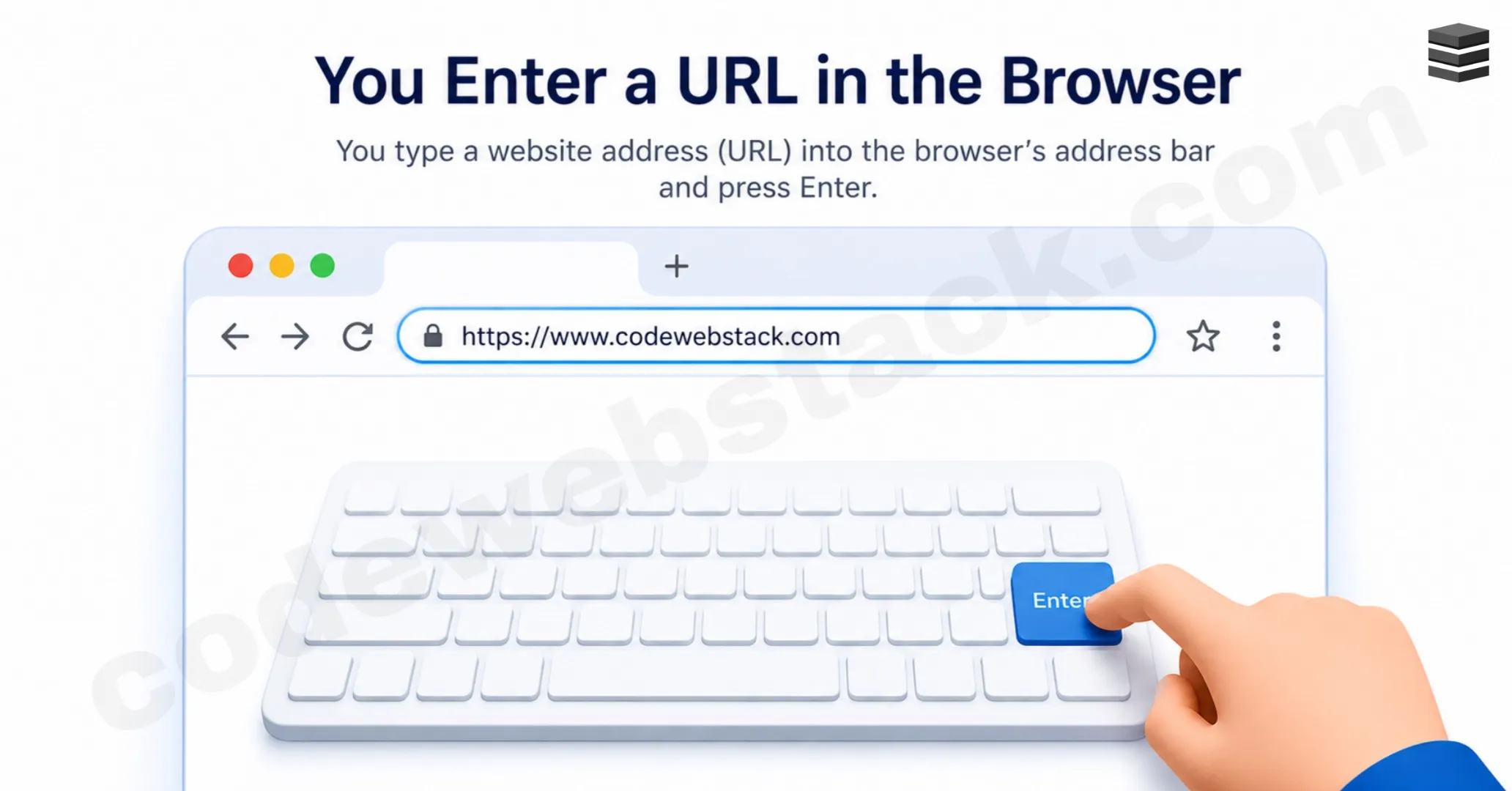
Step 1: You Enter a URL in the Browser
The webpage loading process starts when you type a website address into your browser’s address bar.
For example: codewebstack.com
This address is called a URL, which stands for Uniform Resource Locator. A URL tells the browser where the webpage is located and which page you want to access. When you press Enter, the browser first analyzes what you typed. It tries to determine whether:
- You entered a website URL
- You entered a search term
- You entered a local file path
- You entered an incomplete address
Modern browsers are smart. If you type something like codewebstack, the browser may either search for it or try to open a likely website. The browser also checks the protocol, such as:
http://https://
Most modern websites use HTTPS, which provides a secure encrypted connection between your browser and the website server. This concept is part of how modern internet communication works. So before anything loads visually, the browser first understands what destination you are requesting.
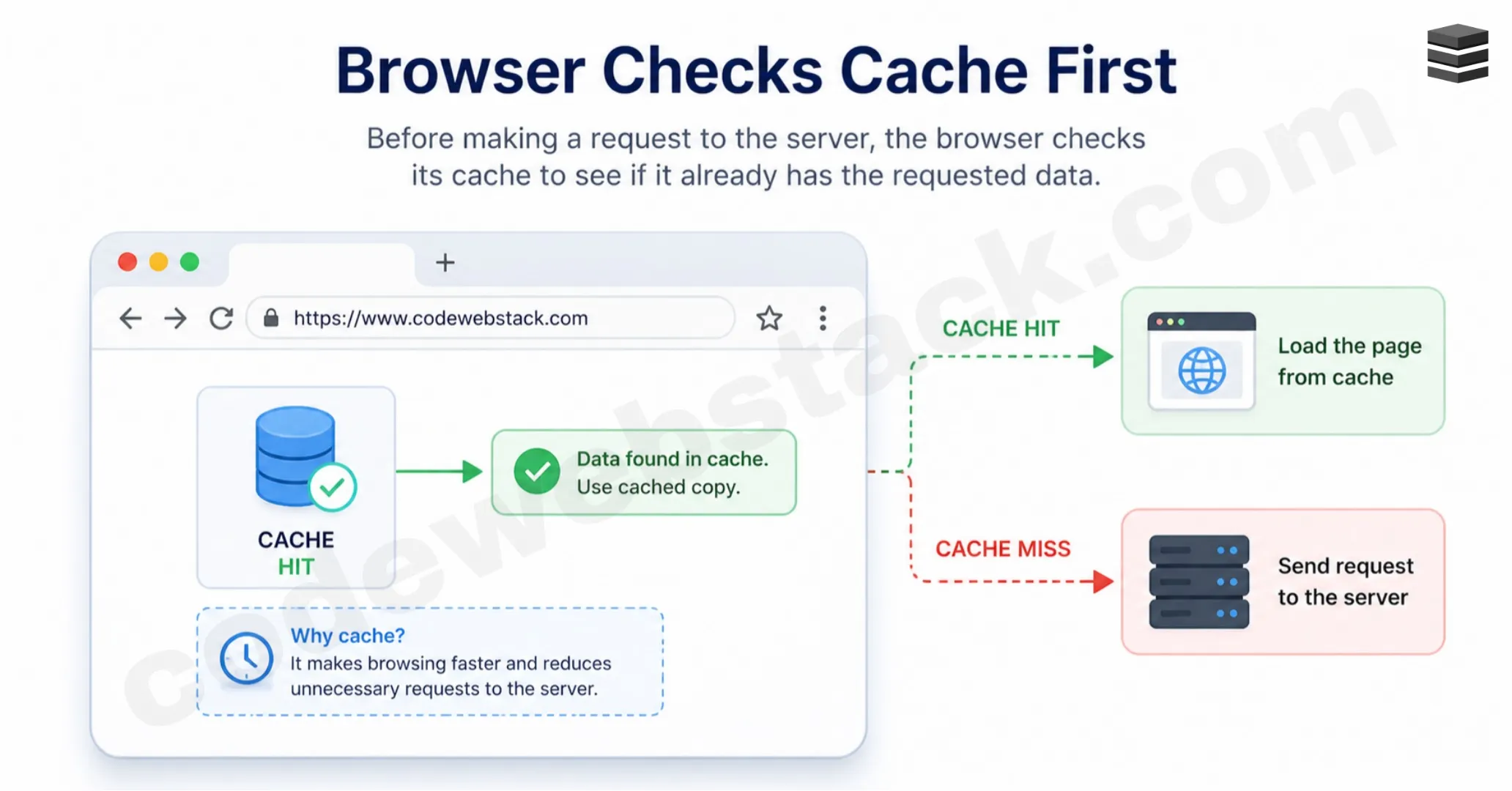
Step 2: Browser Checks Cache First
Before contacting the internet, your browser often checks whether it already has saved website files locally. This saved storage is called the browser cache.
Cache may contain:
- Previously downloaded images
- CSS files
- JavaScript files
- Fonts
- Temporary page resources
- DNS records
This is one major reason why websites often load faster the second time you visit them.
For example: If you visited a website yesterday, the logo image or stylesheet may already be stored in your browser. Instead of downloading those files again, the browser can reuse them instantly.
Benefits of cache:
- Faster loading speed
- Reduced internet usage
- Lower server requests
- Better browsing experience
However, sometimes cached files become outdated. That’s why websites may look broken until you refresh or clear browser cache.
When learning how a webpage loads, cache is important because sometimes the browser does not start from zero, it may already have part of the page ready.
Step 3: DNS Converts Domain Name into IP Address
Humans prefer names like:
- google.com
- codewebstack.com
- youtube.com
But computers communicate using numerical addresses called IP addresses. So before your browser can reach the correct server, it needs to know the server’s IP address. This is where DNS comes in.
DNS stands for Domain Name System. It works like the phonebook of the internet. DNS converts domain names into IP addresses so browsers know where to go.
For example: google.com → server IP address
The browser may check:
- Browser DNS cache
- Operating system cache
- Router cache
- ISP DNS server
- Other DNS servers if needed
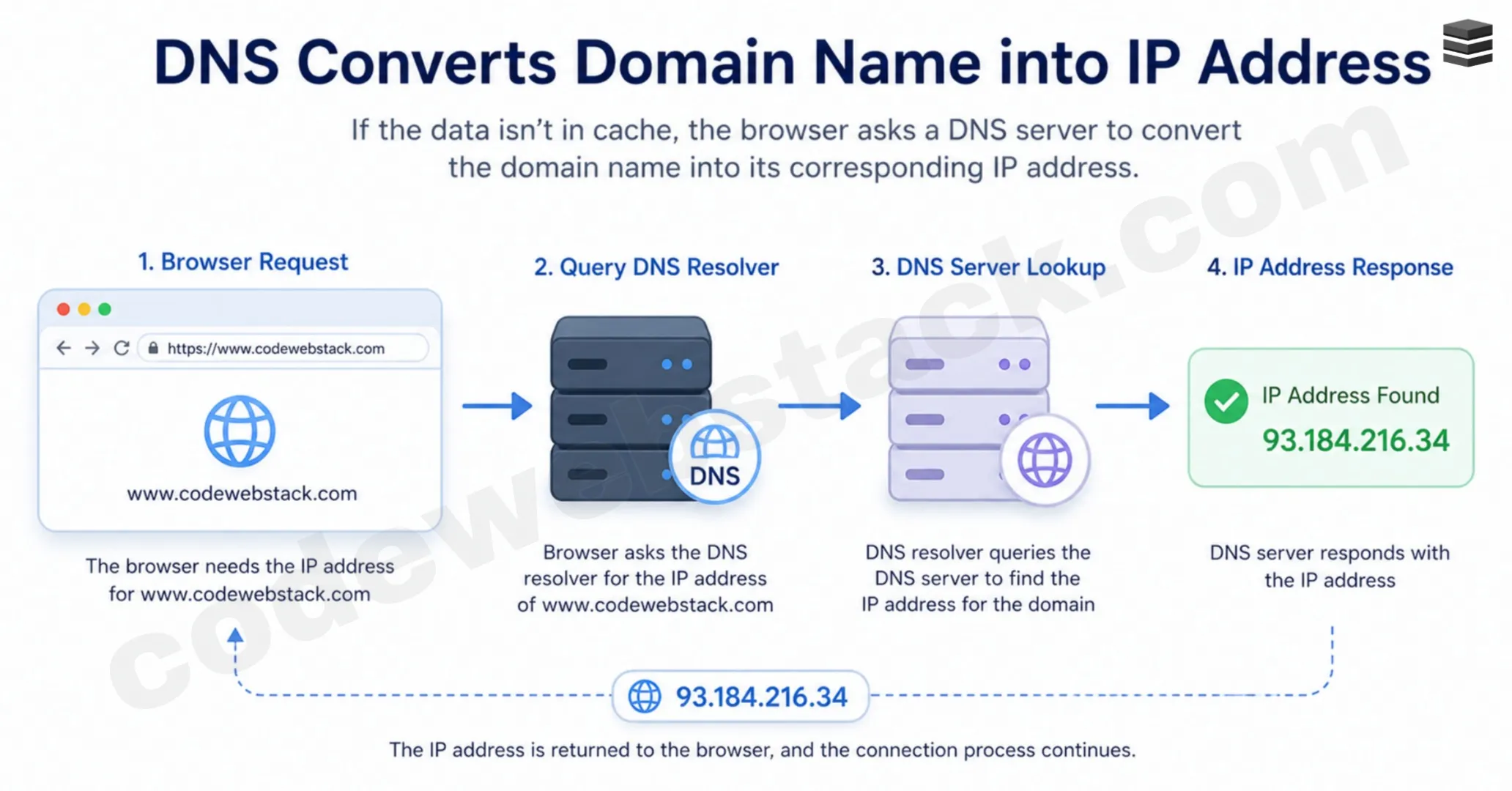
Once the correct IP address is found, the browser now knows the location of the website server. Without DNS, users would need to remember long strings of numbers instead of simple website names. This is one of the most important stages in how a webpage loads, because no connection can begin until the server is located.
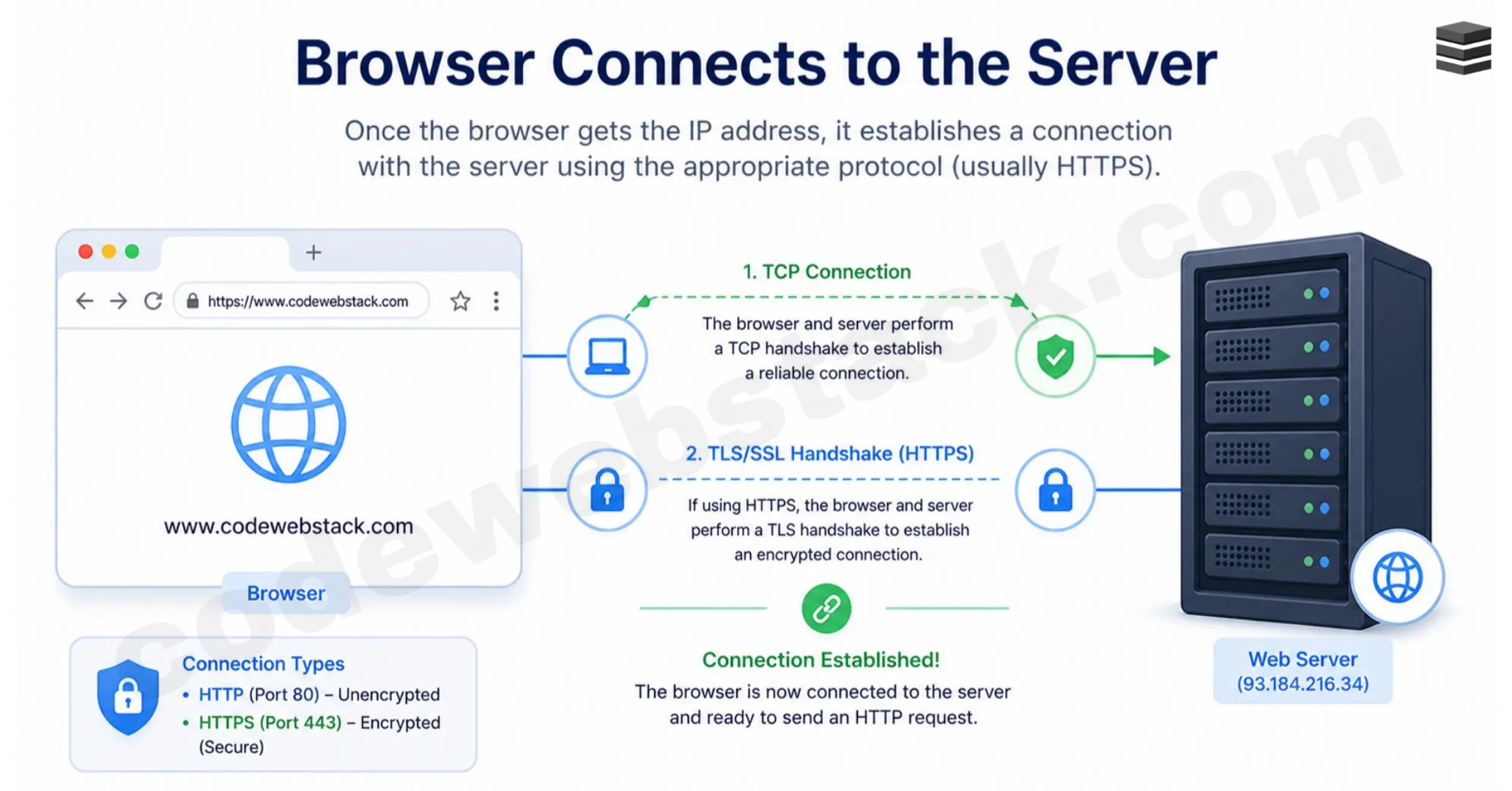
Step 4: Browser Connects to the Server
Once the browser has the correct IP address, the next stage of how a webpage loads begins. Your browser now tries to establish a connection with the website server.
Think of it like dialing a phone number after finding it in a directory. DNS gives the address and the browser uses that address to connect to the server that stores the website files.
This connection usually happens through standard network ports such as:
- Port 80 for HTTP
- Port 443 for HTTPS
Most modern websites use HTTPS, which means the browser and server create a secure encrypted connection before any data is exchanged. This security layer helps protect passwords, payment details and browsing activity.
During this stage, several checks may happen:
- Is the server online?
- Is the website reachable?
- Is the SSL certificate valid?
- Can a secure connection be created?
If any of these fail, you may see messages like:
- This site can’t be reached
- Connection timed out
- Your connection is not private
For users wondering what happens when you type a URL, this connection phase is critical because without a successful server connection, the webpage cannot continue loading.
Also Read: AI Tools for Developers: How to Use AI to Write Code Faster?
Step 5: Browser Sends an HTTP Request
After the connection is established, the browser sends a request asking for the webpage.
This request is commonly called an HTTP request or HTTPS request. It tells the server exactly what the browser wants.
For example, the browser may request:
- Homepage
- Blog page
- Product page
- Image file
- CSS file
- JavaScript file
A request can also include useful information such as:
- Browser type
- Device type
- Accepted file formats
- Language preference
- Cookies or login session data
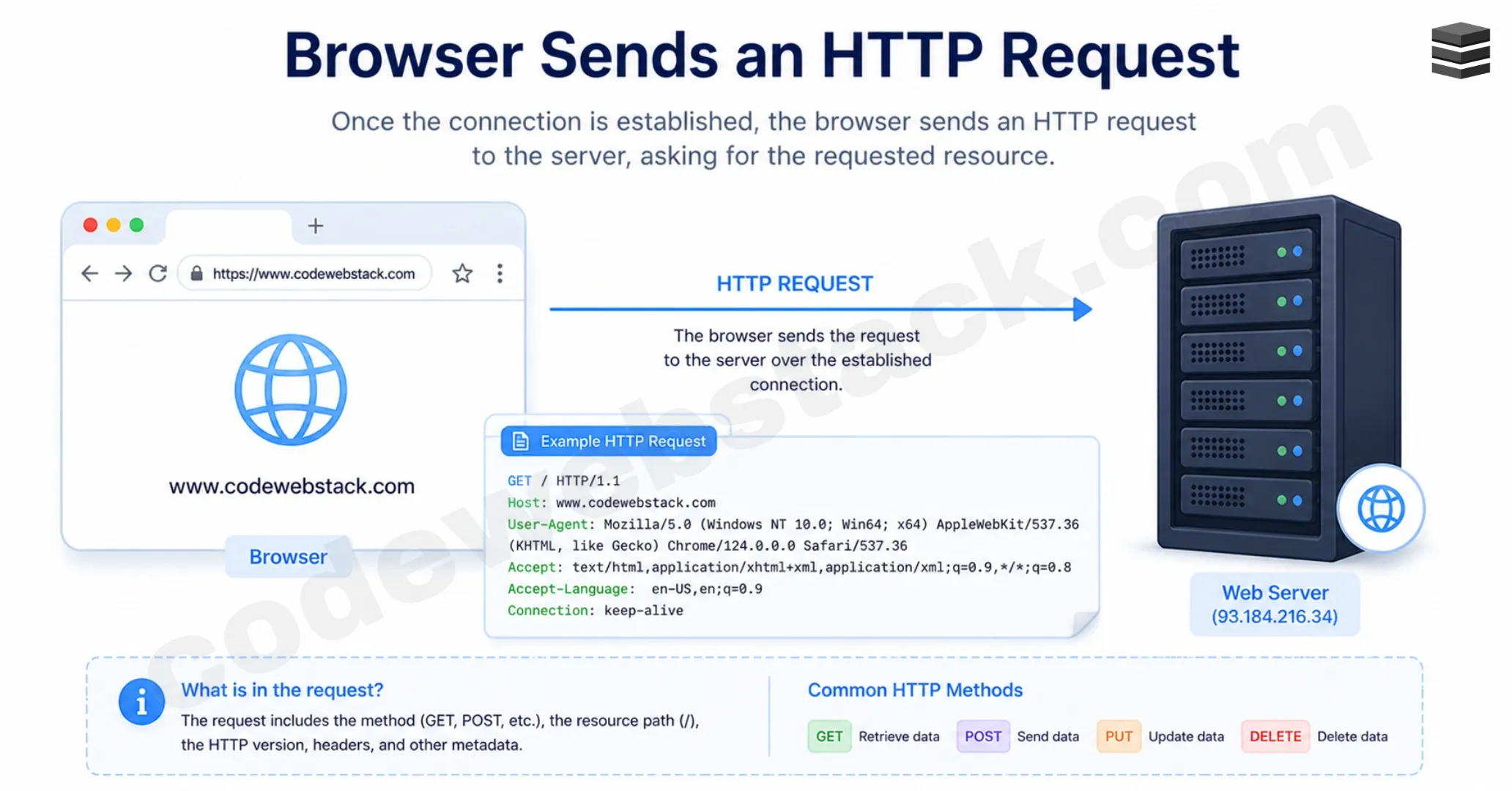
One common request type is a GET request, which asks the server to send a webpage or file. This is a normal part of how browsers communicate with web servers.
If you’ve ever asked what happens when you type a URL, this is one of the key answers: your browser formally requests the page from the hosting server. Without this request, the server would not know what content to return.
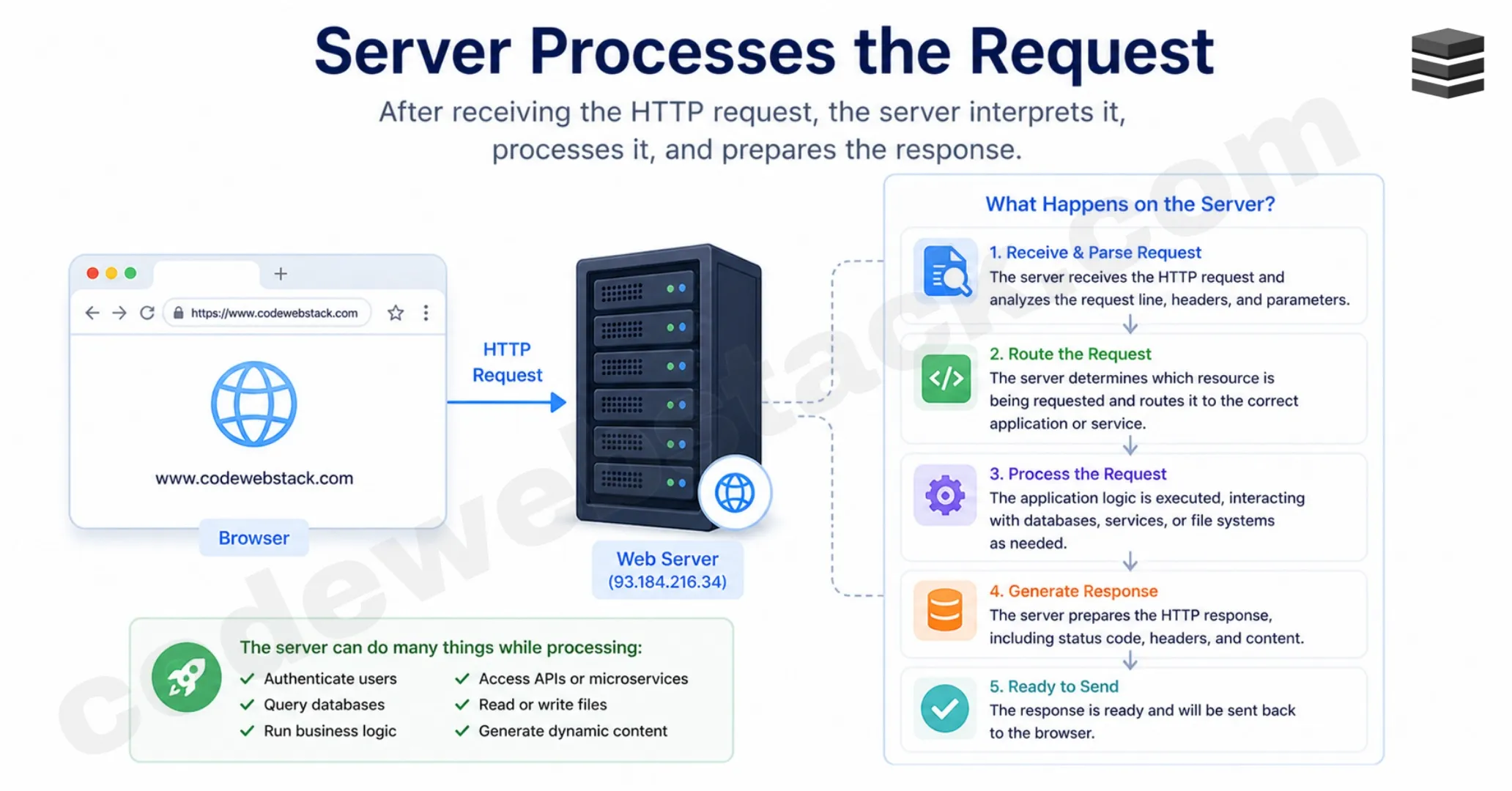
Step 6: Server Processes the Request
Now the website server receives the browser’s request and begins preparing a response. This step can be very simple or more complex depending on the type of website.
Static Website Response
If the website is static, the server may simply return ready-made files such as:
- HTML page
- CSS file
- Images
Dynamic Website Response
If the website is dynamic, the server may need to:
- Run backend code
- Check database records
- Verify user login
- Load product data
- Build personalized content
- Generate page content in real time
For example:
- An eCommerce site may load your cart
- A social media site may load your feed
- A membership site may verify account access
This is an important part of how a webpage loads, because not every page is pre-built. Many modern websites generate content instantly based on the user request.
Server speed, hosting quality, database optimization and code efficiency all affect how fast this step finishes.
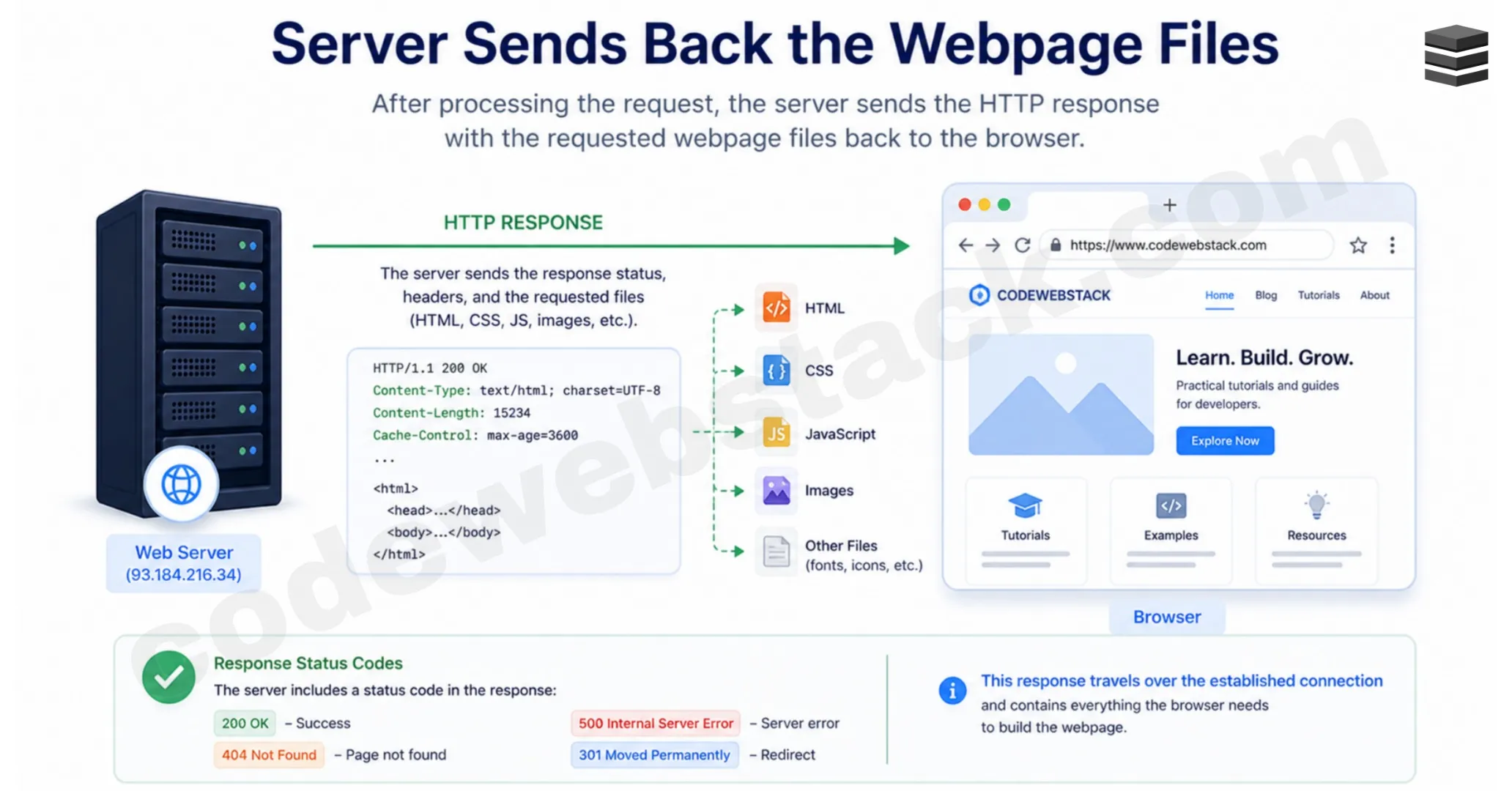
Step 7: Server Sends Back the Webpage Files
Once processing is complete, the server sends the response back to your browser.
This response may include:
- HTML structure
- CSS stylesheets
- JavaScript files
- Images
- Fonts
- API data
These resources are transferred across the internet in small units called data packets, which are then reassembled by your browser after arrival. The faster the hosting server and internet connection, the quicker these files arrive.
Many website owners improve this stage using:
- Compression (smaller file sizes)
- Content Delivery Networks (CDNs)
- Faster web hosting
- Optimized images
If users ask what happens when you type a URL, another key answer is that the server sends all required webpage resources back to your browser.
Step 8: Browser Builds and Displays the Webpage
This is the final visible stage of how a webpage loads. After receiving the files, the browser starts building the webpage on your screen.
First, it reads HTML that gives the structure of the page like Headings, Paragraphs, Images, Buttons, Sections etc then it applies CSS that controls design like Colors, Fonts, Layout, Spacing, Responsive design etc then it runs JavaScript that adds interactivity like Menus, Sliders, Popups, Forms, Dynamic content etc.
The browser may continue downloading extra files in the background while showing part of the page early. That’s why some websites appear in stages instead of all at once.
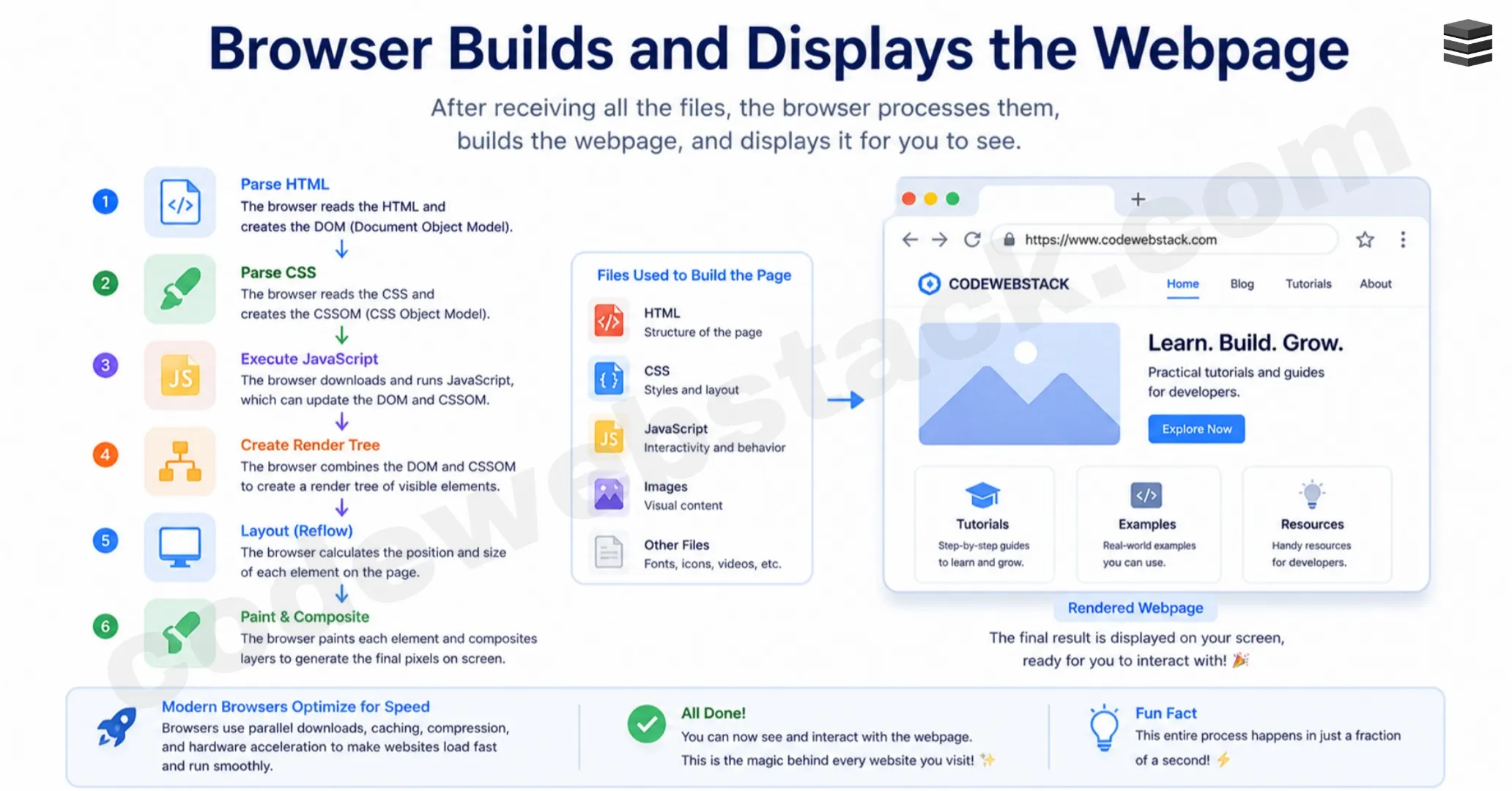
For anyone asking what happens when you type a URL, this is the moment everything becomes visible. The hidden network requests, server processing and file transfers are finally turned into the webpage you see and use. This entire journey often happens in just a few seconds.
Why Some Webpages Load Faster Than Others
Not all websites load at the same speed. Some pages appear almost instantly, while others take several seconds. If you understand how a webpage loads, it becomes easier to see why speed differences happen.
Many users ask what happens when you type a URL and why one website opens quickly while another feels slow. The answer usually depends on multiple factors working together.
- Better Hosting Server: A powerful hosting server can process requests faster and send files more quickly. Cheap or overloaded hosting often slows websites down.
- Website File Size: Large images, videos, heavy JavaScript files and extra design elements increase loading time.
- Browser Cache: If files are already saved in cache, repeat visits become faster because fewer resources need to be downloaded again.
- DNS Speed: Some DNS providers resolve domain names faster than others.
- Internet Connection Quality: Slow Wi-Fi, weak mobile signal or network congestion can delay file transfers.
- Website Code Quality: Clean HTML, optimized CSS and efficient JavaScript help pages render faster.
- Content Delivery Network (CDN): CDNs store copies of website files in multiple locations worldwide, helping users load pages from a nearby server.
- Number of Requests: A page needing 100 files usually loads slower than one needing 20 files. Website speed matters for: Better user experience, Lower bounce rate, Improved conversions and Better SEO rankings.
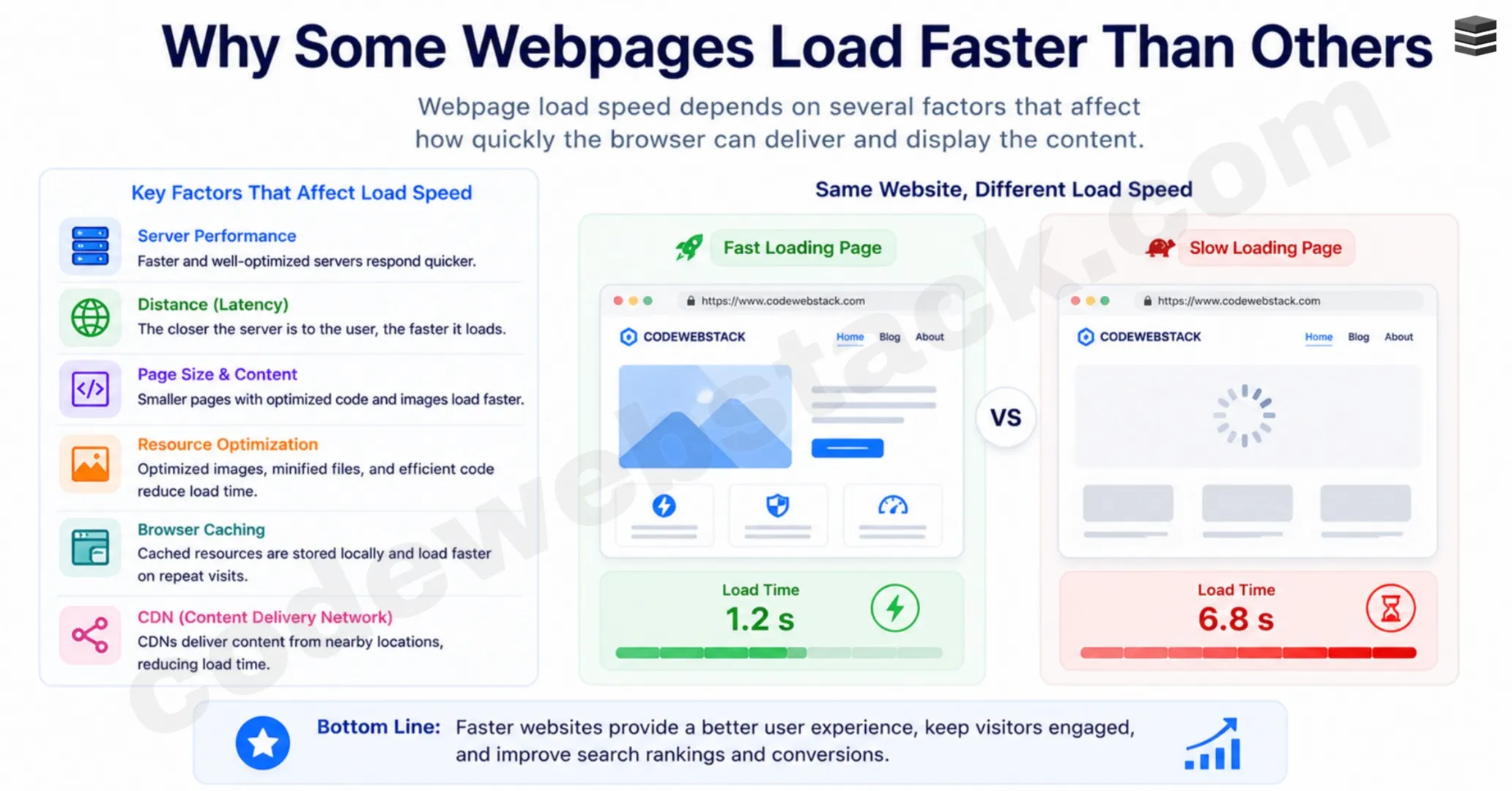
That is why understanding how a webpage loads is useful for bloggers, developers and business owners.
Common Reasons a Webpage Does Not Load
Sometimes the webpage loading process breaks before completion. If you know what happens when you type a URL, it becomes easier to troubleshoot problems.
Here are common reasons a webpage may fail to load:
- DNS Failure: If DNS cannot convert the domain into an IP address, the browser cannot locate the server.
- Server Is Down: If the hosting server is offline, overloaded or under maintenance, the webpage may not open.
- Slow Internet Connection: Weak internet can delay requests or stop files from loading completely.
- SSL / HTTPS Errors: Expired or invalid SSL certificates may trigger browser warnings or block access.
- Broken Code or Scripts: JavaScript errors, bad plugins or coding issues can stop pages from displaying correctly.
- Firewall or Security Blocks: Some networks block websites, ports or certain requests.
- Browser Cache Problems: Outdated cached files can cause broken layouts or loading loops.
- Too Many Redirects: If the website redirects repeatedly, browsers may stop loading it.
When users ask what happens when you type a URL, they often only notice the success case. But many technical checks must pass for the page to appear correctly.
Quick Recap: What happens when you type a URL?
Now let’s summarize how a webpage loads from start to finish.
- You Enter a URL: The browser reads the web address.
- Browser Checks Cache: Saved files may be reused for faster loading.
- DNS Finds the IP Address: The domain name is converted into the server’s numerical address.
- Browser Connects to the Server: A network connection is established.
- Browser Sends Request: The browser asks for the webpage files.
- Server Processes Request: The server prepares the correct response.
- Server Sends Files Back: HTML, CSS, JavaScript, images and other resources are delivered.
- Browser Renders the Webpage: The browser builds and displays the final visible page.
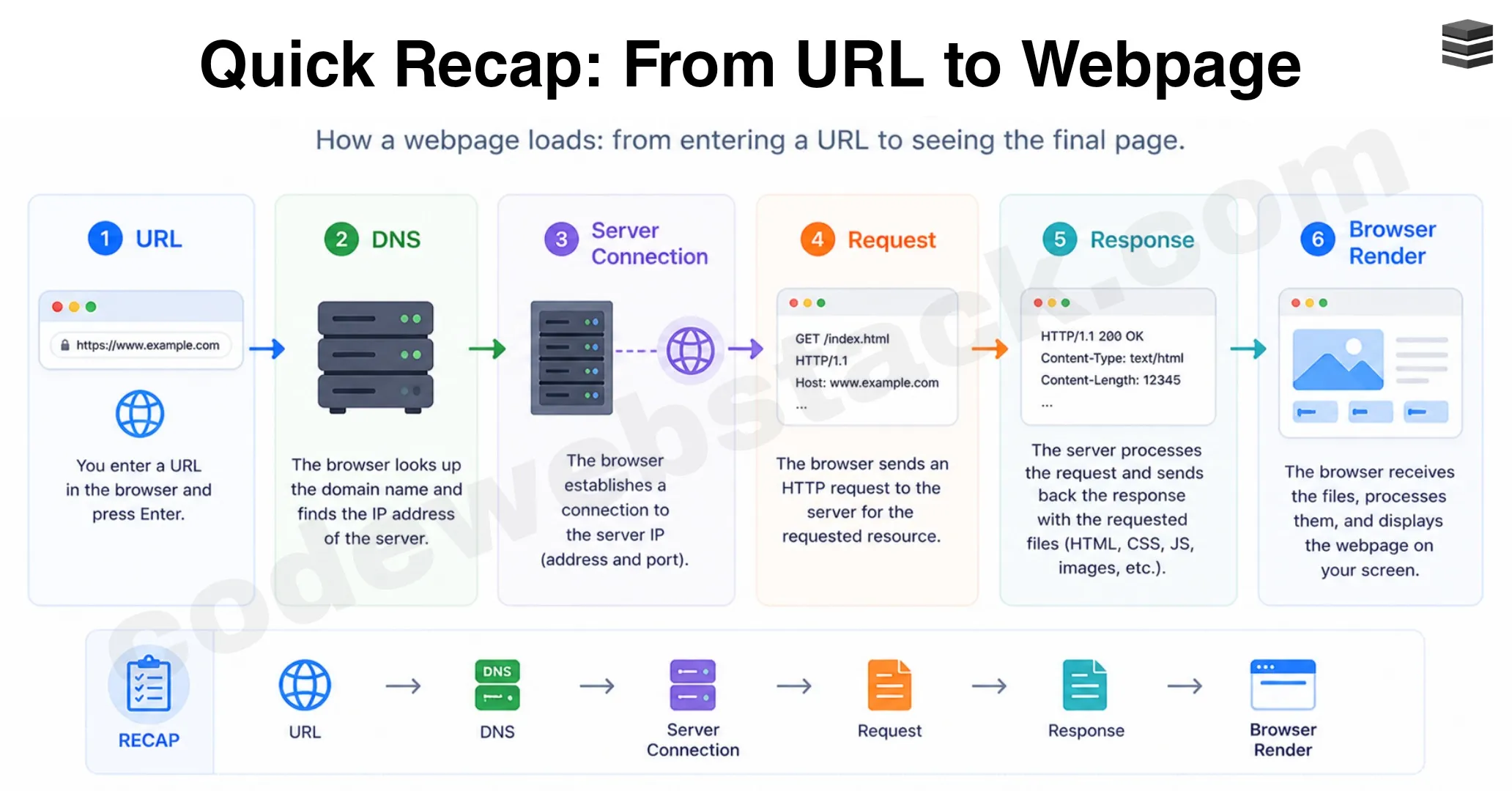
This entire sequence explains what happens when you type a URL and why webpages can load in just seconds.
Final Thoughts
Every day, billions of people open websites without thinking about the systems working behind the scenes. Yet every click starts a chain of events involving browsers, DNS servers, hosting servers, network requests and webpage files.
Understanding how a webpage loads gives you a clearer picture of how the internet works. It also helps with:
- Learning web development
- Improving website performance
- Fixing loading issues
- Understanding hosting and DNS
- Making better SEO decisions
The next time you type a web address, you’ll know there is much more happening than simply opening a page. That single action begins the full journey of what happens when you type a URL, from address bar to fully rendered webpage.
FAQ Section
How long does a webpage take to load?
Most webpages load in 1 to 5 seconds depending on hosting, internet speed, file size and browser performance.
What happens when you type a URL?
The browser checks cache, uses DNS to find the server, sends a request, receives files and renders the webpage.
Why do websites load slowly sometimes?
Slow hosting, large files, poor internet, too many scripts or DNS delays can slow webpage loading.
What is DNS in webpage loading?
DNS converts a domain name like example.com into the server’s IP address so the browser knows where to connect.
Does browser cache make websites faster?
Yes. Cached files reduce repeat downloads, helping websites load faster on future visits.